


Type “Write a reply to a job offer” into an AI assistant and it faces a problem you can’t see. It has no idea whether you are saying yes, no or “yes, but”.
When we tried it with Claude, it solved the problem the only way it could. It wrote three emails at once: one accepting, one negotiating, one declining. All three were full of blanks to fill in.
Nothing in that answer was wrong. It was just useless until we did the real work ourselves.
That is what prompting is about. Not secret phrases or clever tricks. Just giving the AI the information it needs to do the job properly.
What you will learn
Why vague requests get generic answers.
The four things every useful prompt includes.
How to fix an answer without starting over.
A simple trick for when you don’t know what to include.
Every example in this guide comes from one real test, using the same job offer scenario from start to finish.
A prompt is a brief
A prompt is simply the message you send to an AI assistant. The word sounds technical. The skill is not.
Think of the AI as a very capable colleague on their first day. They write well, they work fast and they know a lot about the world. But they know nothing about you, your situation or what you are trying to achieve.
Anthropic, the company behind Claude, suggests a simple test. Imagine showing your prompt to a colleague who knows nothing about the task. If they would be confused about what to do, the AI will be too.
Whatever you leave out, the AI fills in with a guess. Sometimes the guess is fine. Often it is a blank, a generic phrase or a confident assumption about you that isn’t true.
The vague version
Here is the request we started with:
Write a reply to a job offer.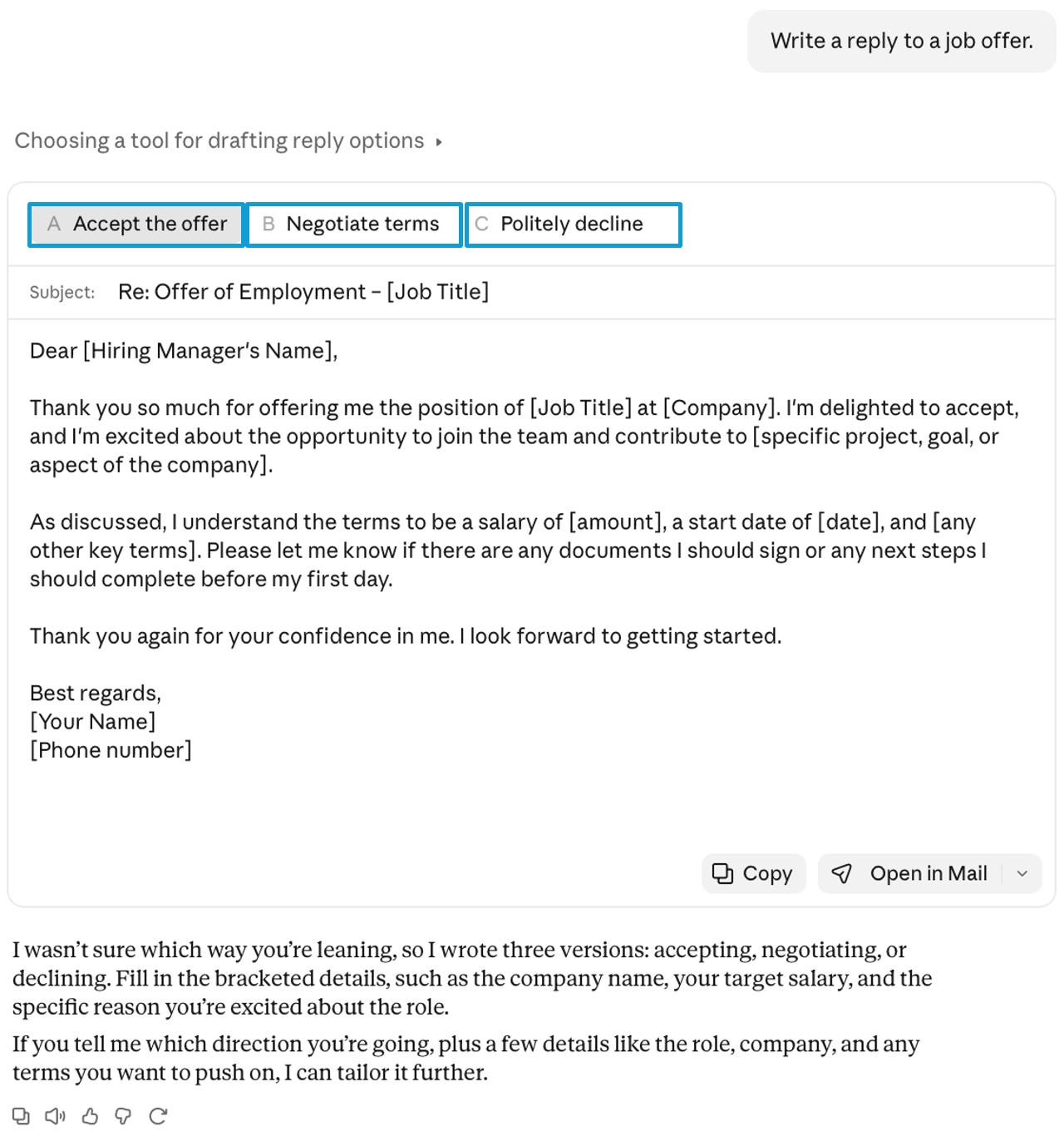
One vague request, three possible emails, and a lot of blanks to fill in.
Claude did its best. It offered three versions, filled them with placeholders like [Job Title] and [Company], and ended by asking which direction we wanted and for more details.
That last part is important. The AI was telling us exactly what was missing. Most people skip that message and start editing the template instead.
The four things a good prompt includes
Before rewriting the request, ask yourself four questions.
Goal. What should the result achieve? Not “a reply”, but “accept the offer, move the start date and ask about office days”.
Context. What would a newcomer need to know? The role, the situation and anything that affects the answer, such as a notice period at your current job.
Output. What should the result look like? An email with a subject line, under 150 words, in a warm and professional tone.
Limits. What must or must not happen? For example: don’t sound demanding, and don’t invent anything you weren’t told.
Notice what is not on this list: long backstories, flattery or special keywords. More words do not make a better prompt. The right details do.
The briefed version
Here is the same request, rewritten with all four ingredients:
Write a reply to a job offer I received yesterday for a junior graphic designer role at a design studio.

Context: I want to accept. They proposed a start date of 1 December, but I must give four weeks’ notice at my current job, so I would like to start on 15 December instead. The offer mentions hybrid work but does not say how many days a week are in the office.

Goal: accept with enthusiasm, move the start date to 15 December and ask how many office days are expected.

Tone: warm and professional. I don’t want to sound demanding.

Format: a short email with a subject line, under 150 words.

Do not invent any facts I have not given you.
The labels are optional. Plain sentences work just as well. The labels mostly help you check that nothing is missing.
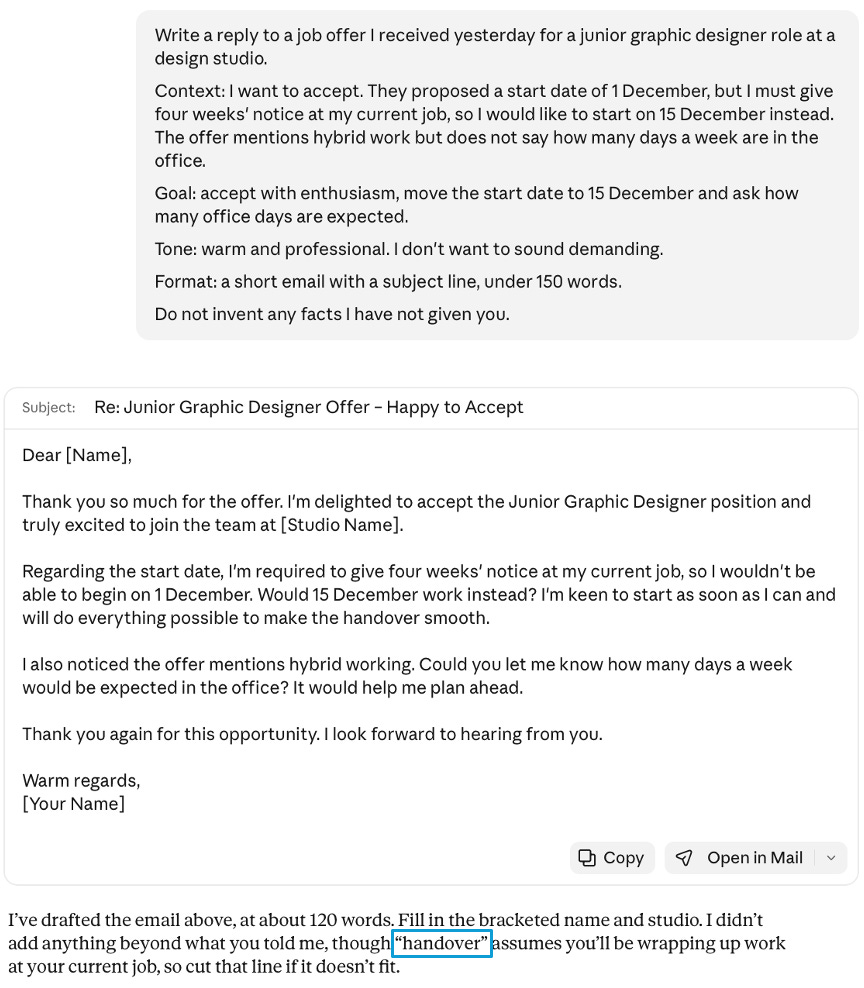
One clear email that does exactly what was asked, plus an honest note about the one thing Claude assumed.
This time we got one email, about 120 words long. It accepted the offer, explained the notice period, proposed the new start date and asked about office days. Claude presented it as a ready email with a Copy button underneath.
Two details are worth noticing.
First, the only blanks left were the hiring manager’s name and the studio’s name. We never gave Claude those, so it didn’t make them up. That is the “do not invent” instruction working.
Second, Claude pointed out one small assumption of its own: it had mentioned a smooth handover at our current job, and suggested cutting the line if it didn’t fit. When an AI tells you what it assumed, that is your cue to check.
Refine, don’t restart
The first answer is rarely the final one. When it is close, don’t start a new chat. Say what to change, in the same conversation.
Good. Make it a little more enthusiastic, add that I’m happy to join a team meeting before my first day if that helps, and keep everything else the same.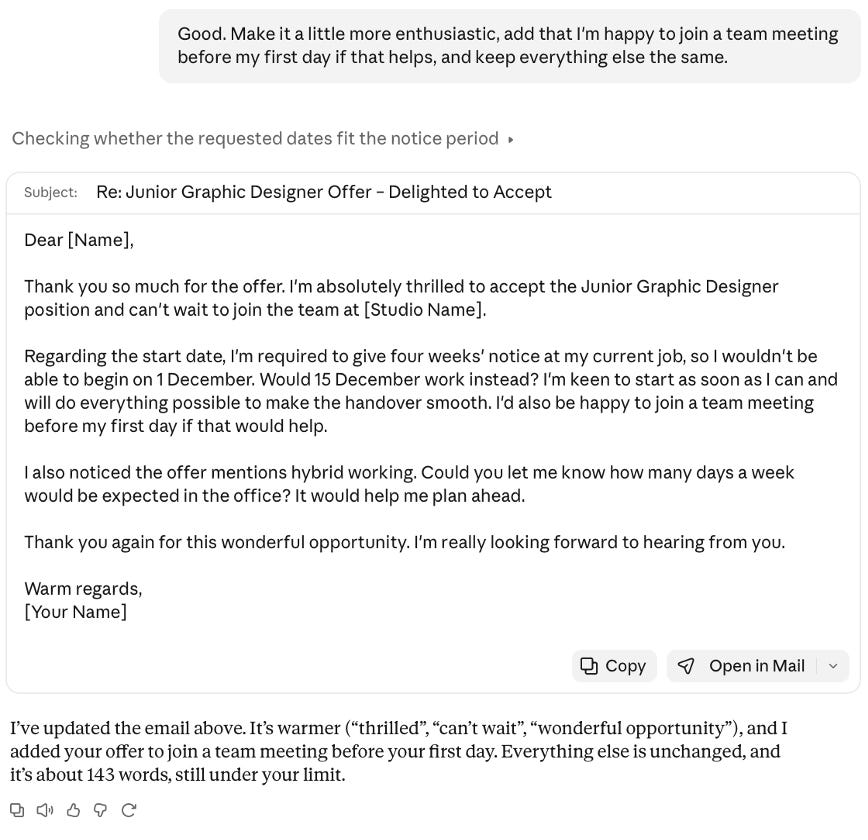
Claude changed only what was asked and kept the rest.
Claude warmed up the wording, added the team meeting offer and left everything else as it was. It also confirmed the email was still under the 150 word limit.
The phrase “keep everything else the same” is doing real work here. Without it, the AI may rewrite parts you were already happy with.
So when should you start a new chat? When the AI has misunderstood the task from the beginning, or when a long conversation has drifted so far that corrections no longer help. Otherwise, keep refining.
Stuck? Ask the AI to improve your prompt
Sometimes you know a request is weak, but not what to add. Let the AI tell you. In a new chat, we sent this:
Here is a prompt I wrote: “Write a reply to a job offer.” Rewrite it into a better prompt, and explain in one line each what you added and why.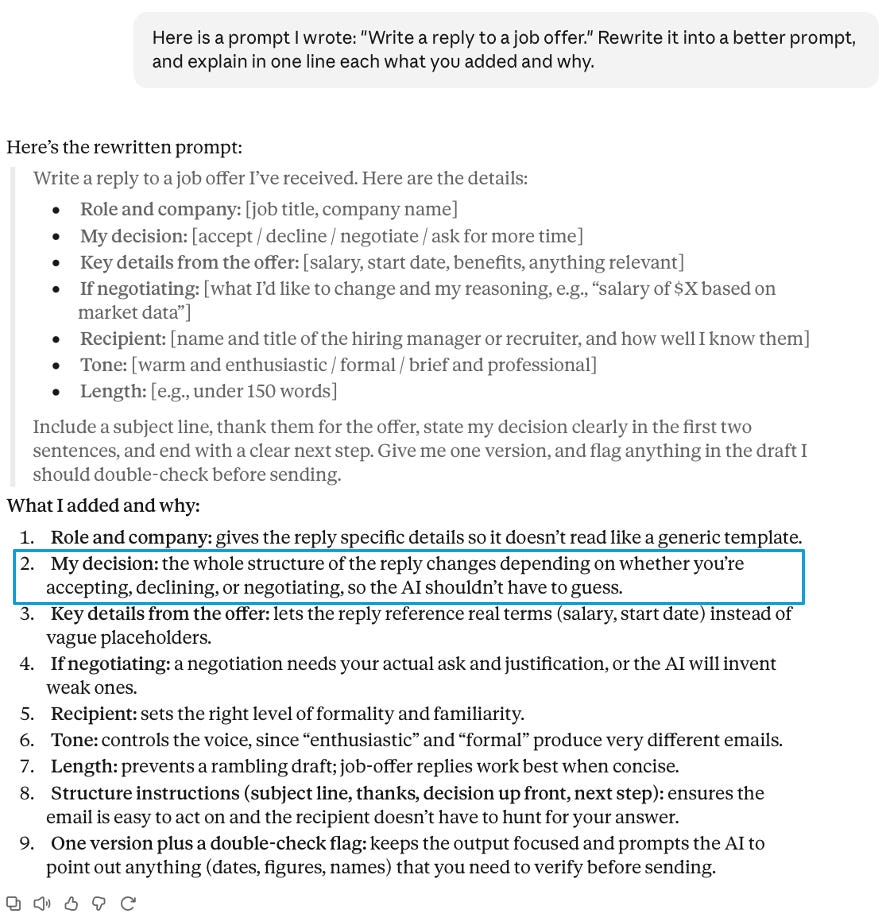
Claude turned a vague request into a fill in template and explained every addition.
Claude turned the one line request into a template with spaces for the role, your decision, the key details of the offer, the recipient, the tone and the length. Then it explained each addition.
The most useful line was the second one: your decision. As Claude pointed out, the whole structure of the email changes depending on whether you accept, decline or negotiate. That single missing fact was the reason our first attempt produced three emails instead of one.
Use this trick whenever you face a new kind of task. It costs one message and teaches you what matters.
What a good prompt can’t do
A better prompt reduces guessing. It does not guarantee a correct answer.
Read everything before you use it, especially names, dates, numbers and promises. An email that sounds perfect can still contain a wrong date. And before you paste real documents into any AI tool, remove anything confidential: contract terms, salary details, other people’s personal information.
Your reusable prompt template
Copy this, fill in the brackets and delete anything that doesn’t apply:
I need [what you want, in one sentence].

Goal: [what a good result should achieve].

Context: [what a smart newcomer would need to know].

Output: [format, length and tone].

Limits: [what to avoid. Don’t invent facts. Ask me questions first if anything important is missing.]
Not every request needs all four parts. A quick question needs none of them. Use the template when the result matters.
Try it today
Pick a message you need to write this week: a request to your manager, a reply to a client, a note to a neighbour. Then do three things.
Send the lazy version in one chat.
Send a briefed version, using the template, in a new chat.
Compare the two answers and notice which details made the difference.
That comparison will teach you more than any list of prompting tips.
Your next step
New to Claude? Start with Claude for Complete Beginners: Your First 15 Minutes.
Ready for more? Next comes One AI Assistant. Five Different Tasks. Five Better Prompts. It shows how the same skill changes for writing, research, learning, planning and data.
If this guide helped, share it with someone who keeps getting generic answers from AI. And if a prompt still isn’t working for you, reply and tell us what you tried. Your questions shape our next guides.
Last checked: 1 November 2026, using the Claude free plan on the web.